Network Ports
A network port is a virtual network interface that exists independently of any instance. By creating a port before launching an instance and attaching the port at launch, the IP address is preserved across the instance lifecycle — you can delete and recreate instances without losing the IP.
This is useful when you need a stable IP address for a service, such as a load balancer frontend, a database, or an instance you plan to replace with a newer image.
When ports are created upfront and then attached, they will not be automatically deleted when the instance is deleted or when the port is detached. The IP address remains allocated to the port and can be attached to another instance. If you instead create an instance without a pre-created port, the port is deleted and the IP address returns to the pool when the instance is deleted or the interface is detached.
Attach only one network interface per instance
Safespring uses Calico networking. Each network assigns a default gateway via DHCP. Attaching more than one network interface gives the instance multiple default gateways, causing asymmetric routing and unreliable connectivity. Always attach exactly one port or network per instance.
For more details on how networking works on the Safespring platform, see Networking.
This page includes OpenStack CLI commands. See the API Access documentation for instructions on how to install and configure the command line client.
Creating a port in the dashboard
Open the Network menu and select Networks.
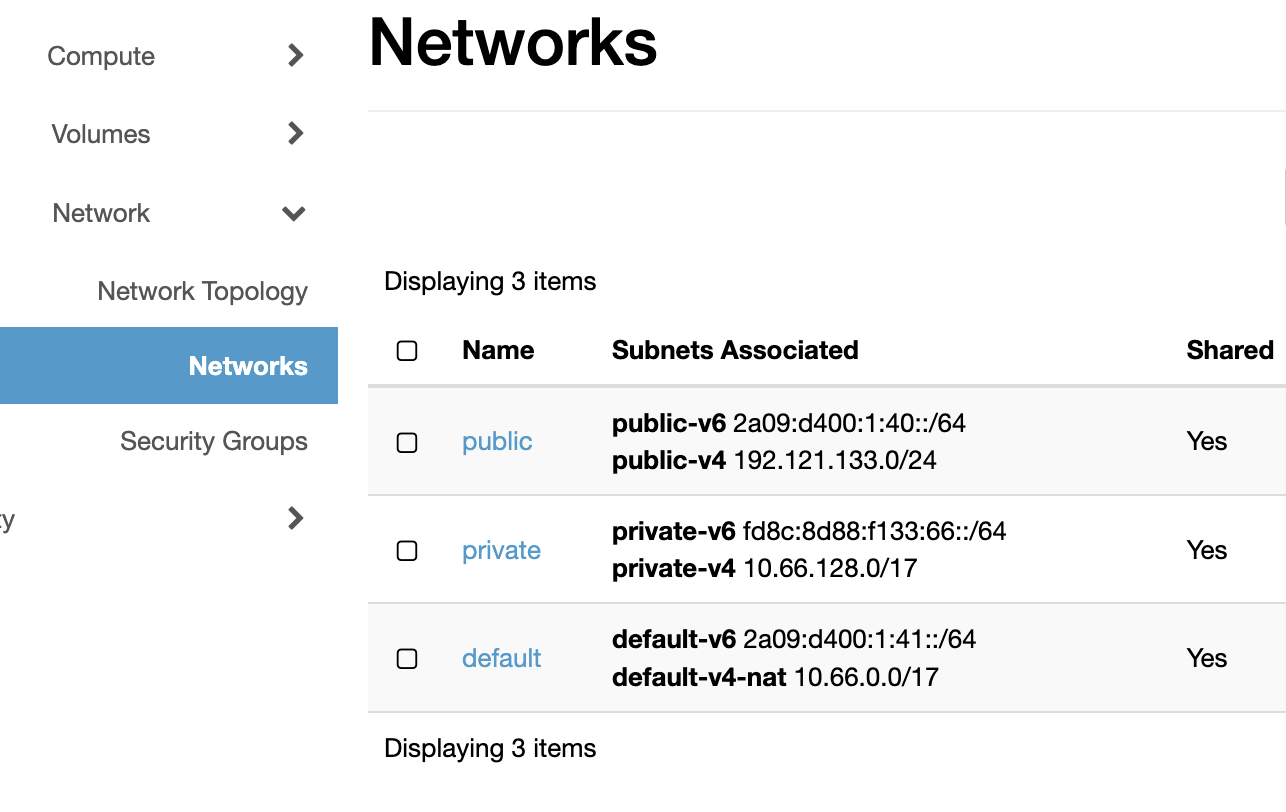
Click the network you want to create the port in — for example public for a public IP address, or default for a private IP.
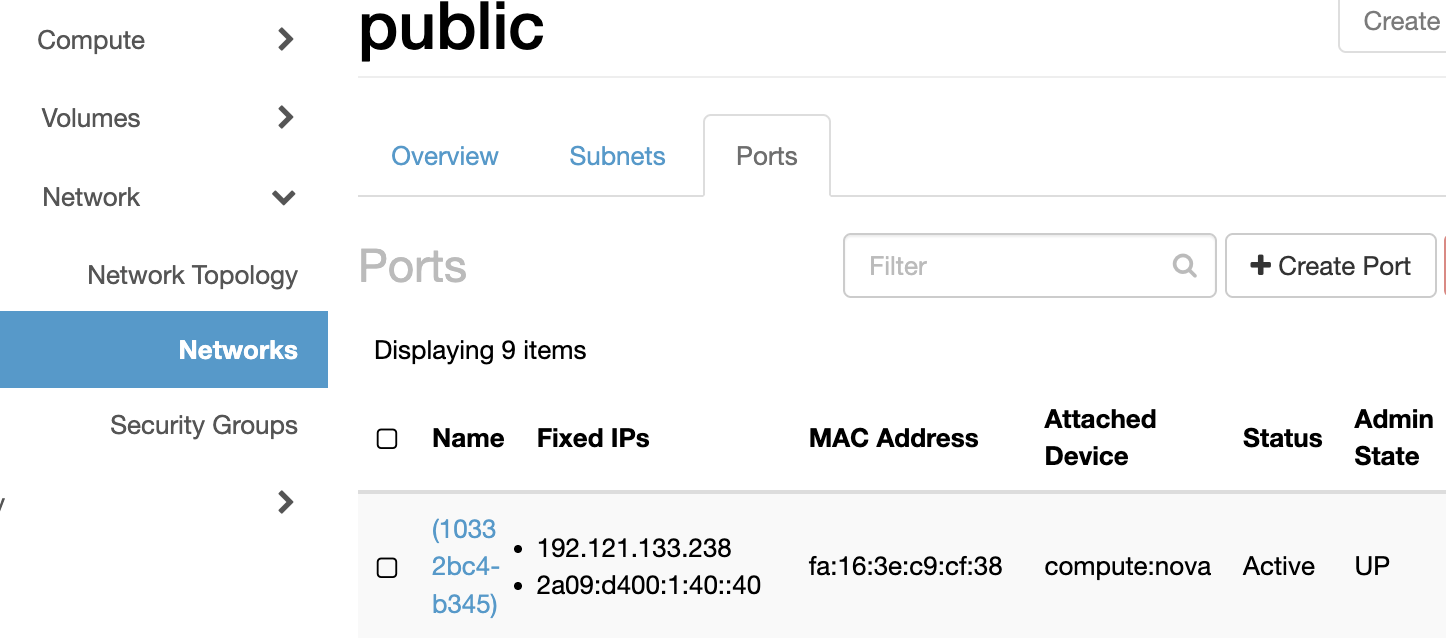
On the network detail page, select the Ports tab.
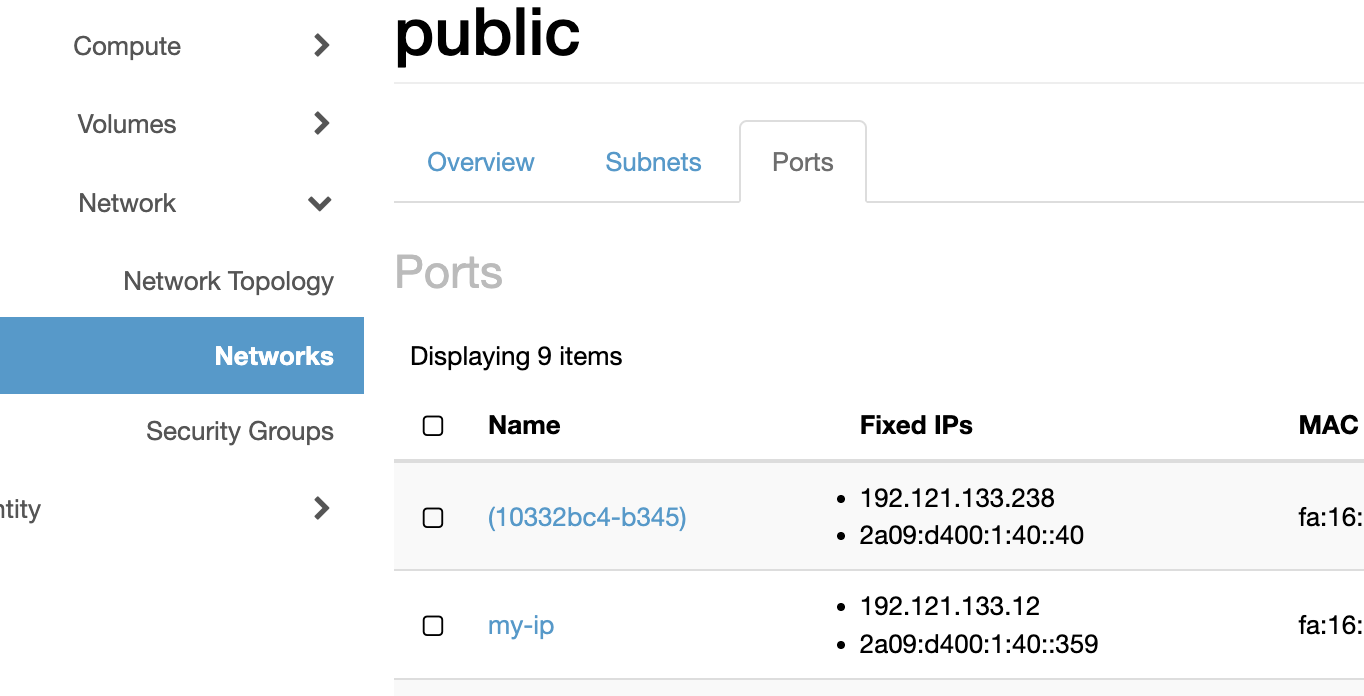
Click + Create Port.
In the Create Port dialog, enter a name for the port. The remaining fields are optional:
- Device ID and Device Owner — leave blank; these are filled automatically when you attach the port to an instance.
- IP Address — leave blank to have an address assigned automatically from the subnet, or enter a specific address if you need a fixed IP.
- MAC Address — leave blank unless you have a specific requirement.
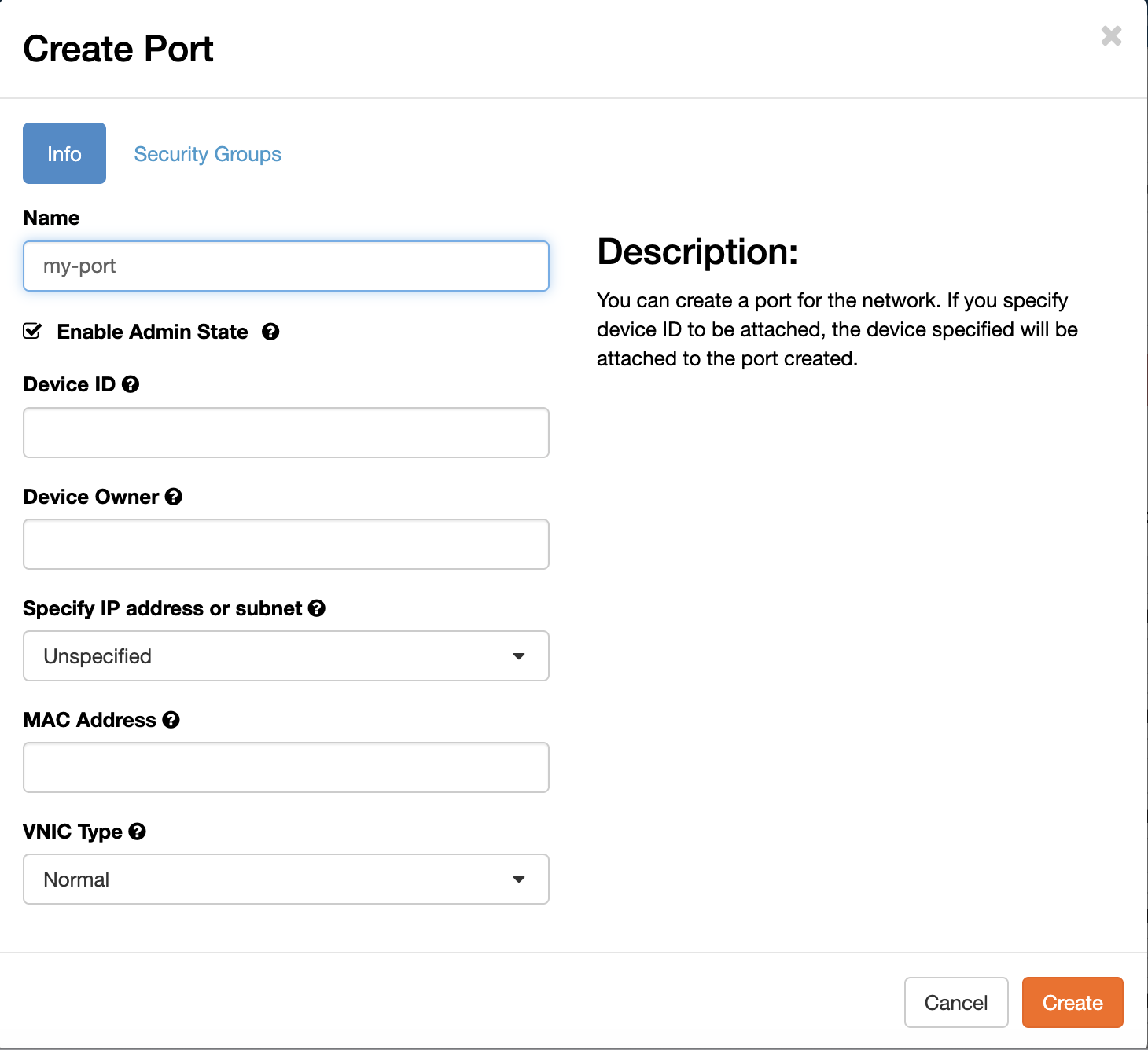
Click Create to create the port. The port now appears in the list and has an IP address assigned to it.
Attaching the port when launching an instance
When creating a new instance, go to the Network step in the Launch Instance wizard. Instead of selecting a network, skip that step and proceed to Network Ports. Select the port you created. The instance will be attached to that port and will use its IP address.
Creating a port with the CLI
Create a port
openstack port create --network <network-name> <port-name>
For example, to create a port on the public network:
openstack port create --network public my-service-port
The output shows the assigned IP address and port ID:
+-------------------------+--------------------------------------+
| Field                   | Value                                |
+-------------------------+--------------------------------------+
| id                      | aead4548-e41d-4724-acd5-6aeb8d9fbce8 |
| name                    | my-service-port                      |
| network_id              | ...                                  |
| fixed_ips               | ip_address='185.189.29.42', ...      |
| status                  | DOWN                                 |
+-------------------------+--------------------------------------+
Launch an instance attached to the port
Pass --port instead of --network when creating the instance:
openstack server create \
    --image ubuntu-24.04 \
    --flavor l2.c2r4.100 \
    --key-name my-key \
    --port my-service-port \
    my-instance
List ports
openstack port list
To filter by network:
openstack port list --network public
Show port details
openstack port show my-service-port
Delete a port
Ports are not deleted when an instance is deleted. Delete unused ports explicitly to keep the network clean:
openstack port delete my-service-port
A port that is currently attached to an instance cannot be deleted. Detach the port first or delete the instance.
Detaching and reattaching a port
You can move a port from one instance to another without losing its IP address.
Detach the port from the current instance:
openstack server remove port <instance-name> <port-name-or-id>
Attach it to another instance:
openstack server add port <instance-name> <port-name-or-id>
This is useful when replacing an instance with a newer image — create the new instance, then move the port from the old instance to the new one.